Delete user
This page explains how to delete an existing user.
Delete User
-
In the User list, find the user you want to delete (use Search bar if needed).
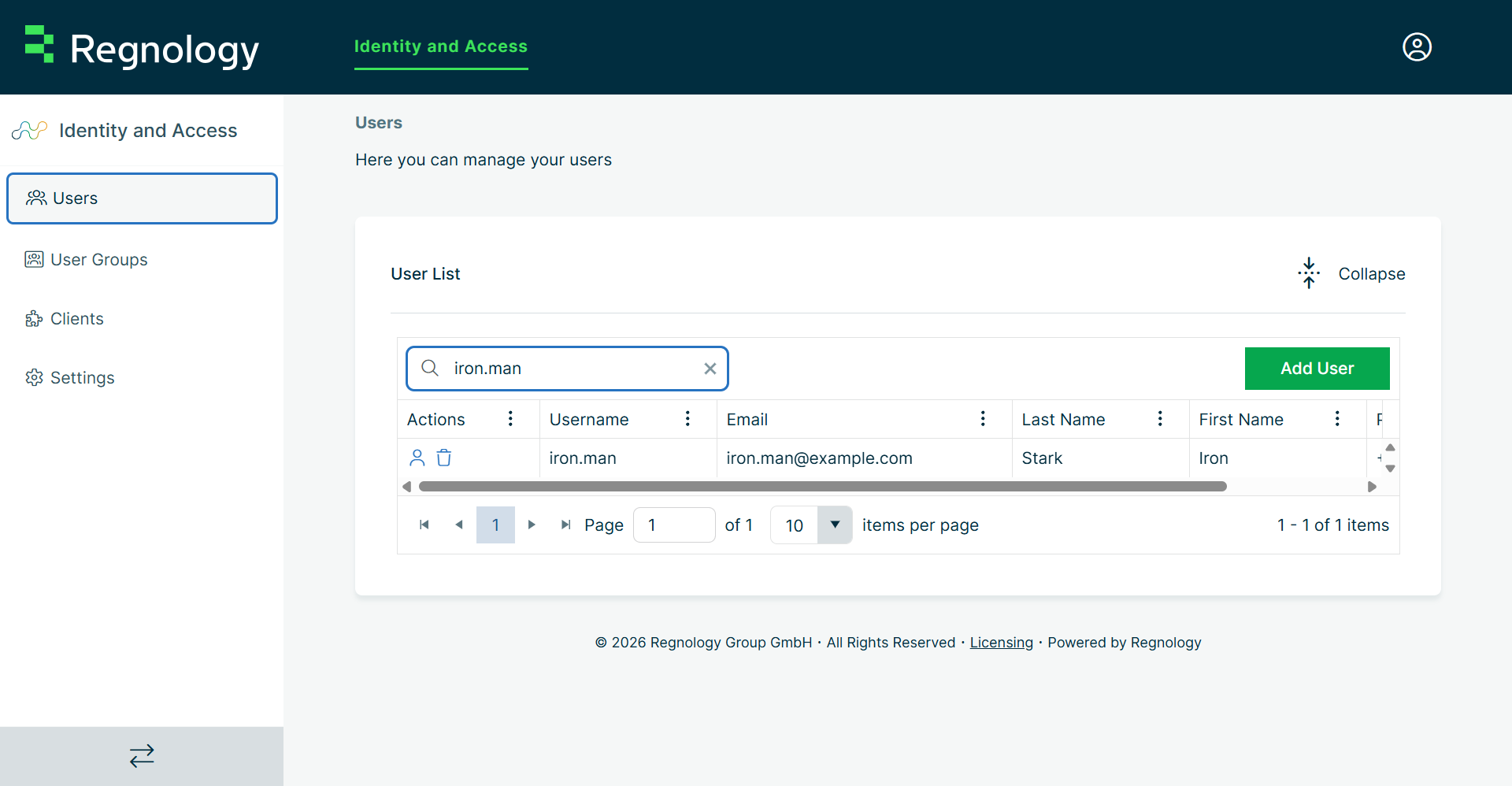
Figure 29. User List showing iron.man before delete
-
In the Actions column for that user, click the Delete (trash) icon. Make sure you select the correct row.
-
A confirmation dialog appears.
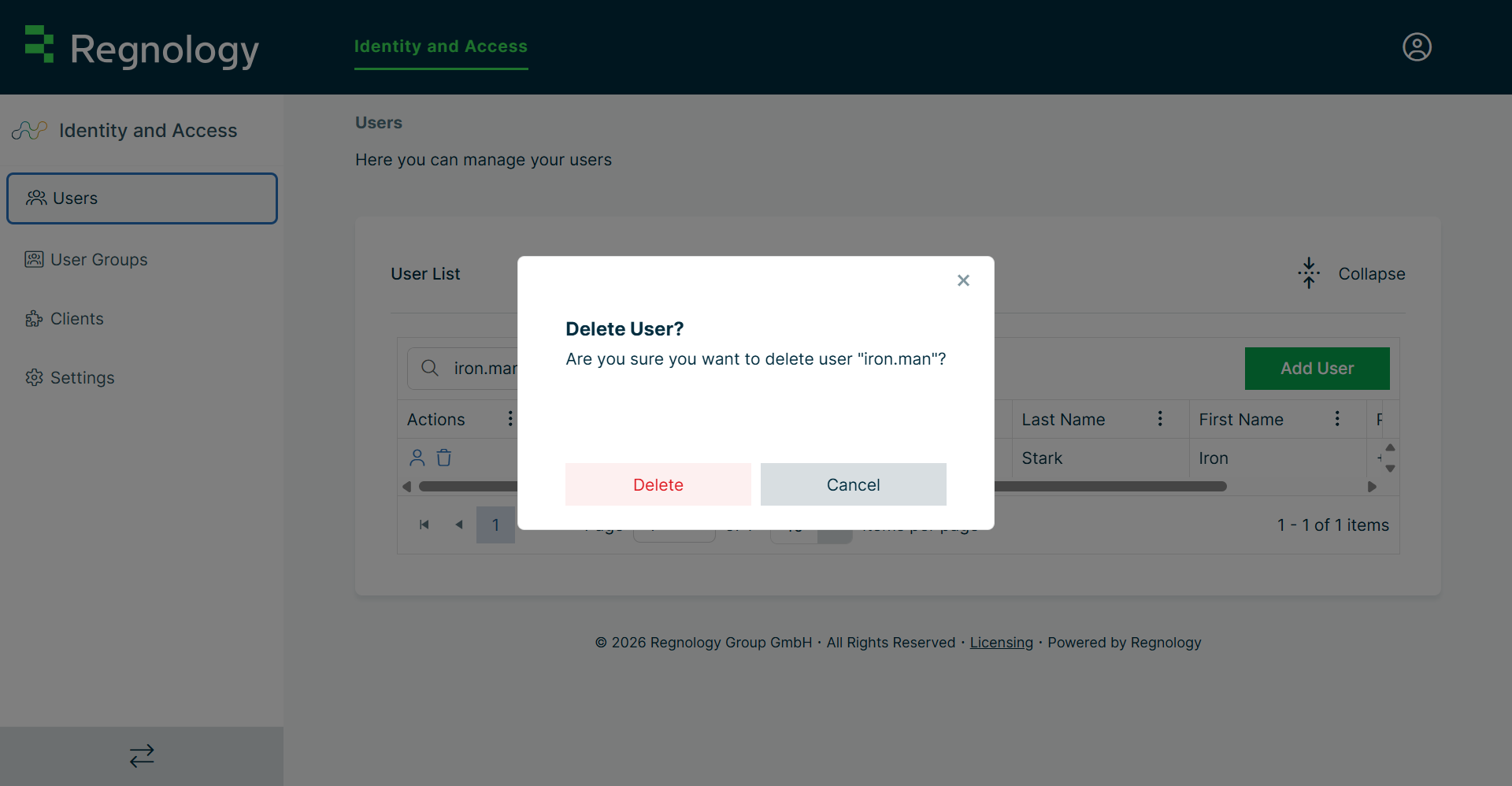
Figure 30. Delete User confirmation dialog
-
Confirm that the dialog names the correct user. Example: Are you sure you want to delete user "iron.man"?
- If the username is wrong, click Cancel.
-
Click Delete in the confirmation dialog.
-
Success message: User was deleted
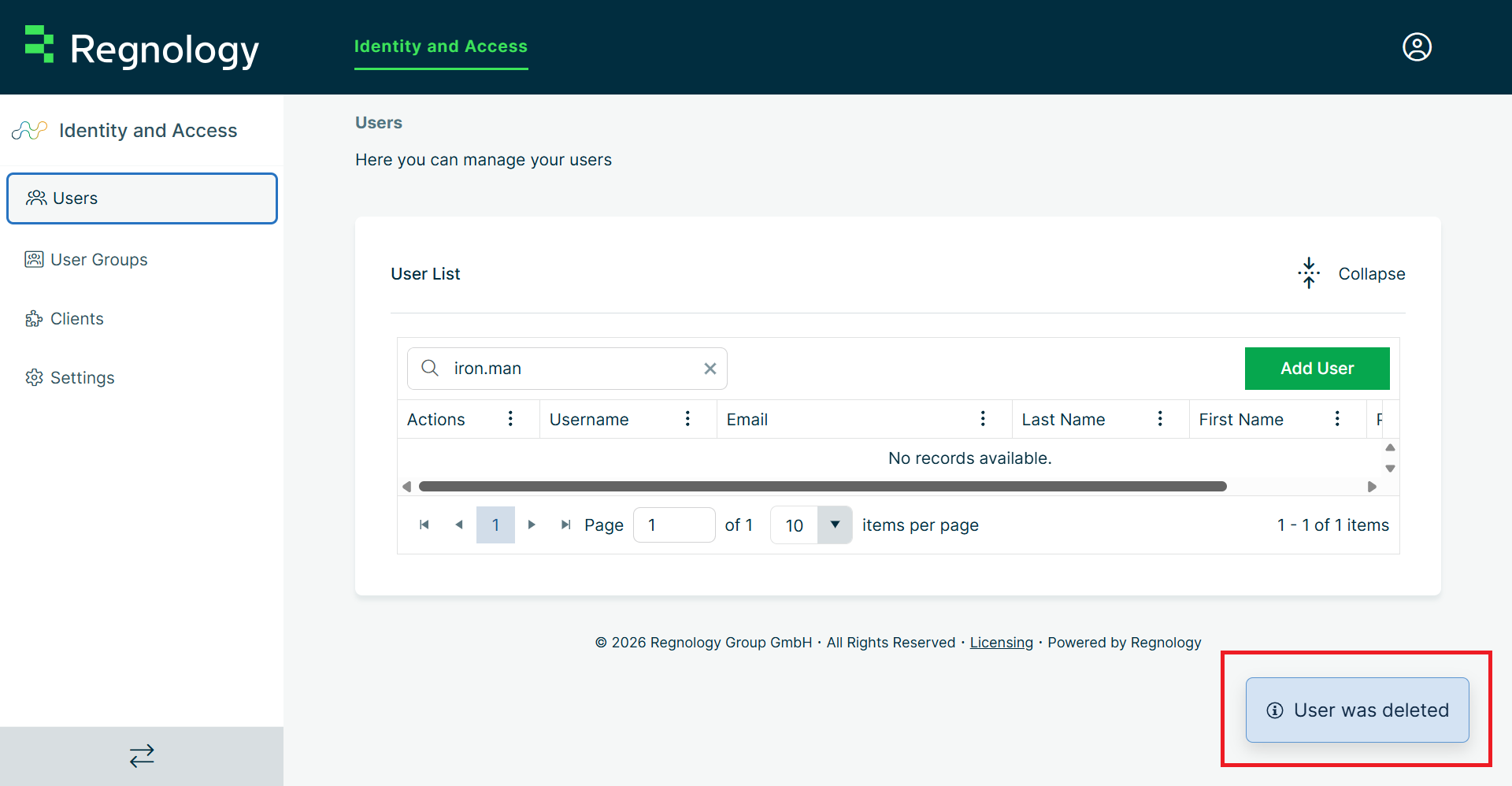
Figure 31. Success message after deleting the user
-
Confirm the user no longer appears in the User List.
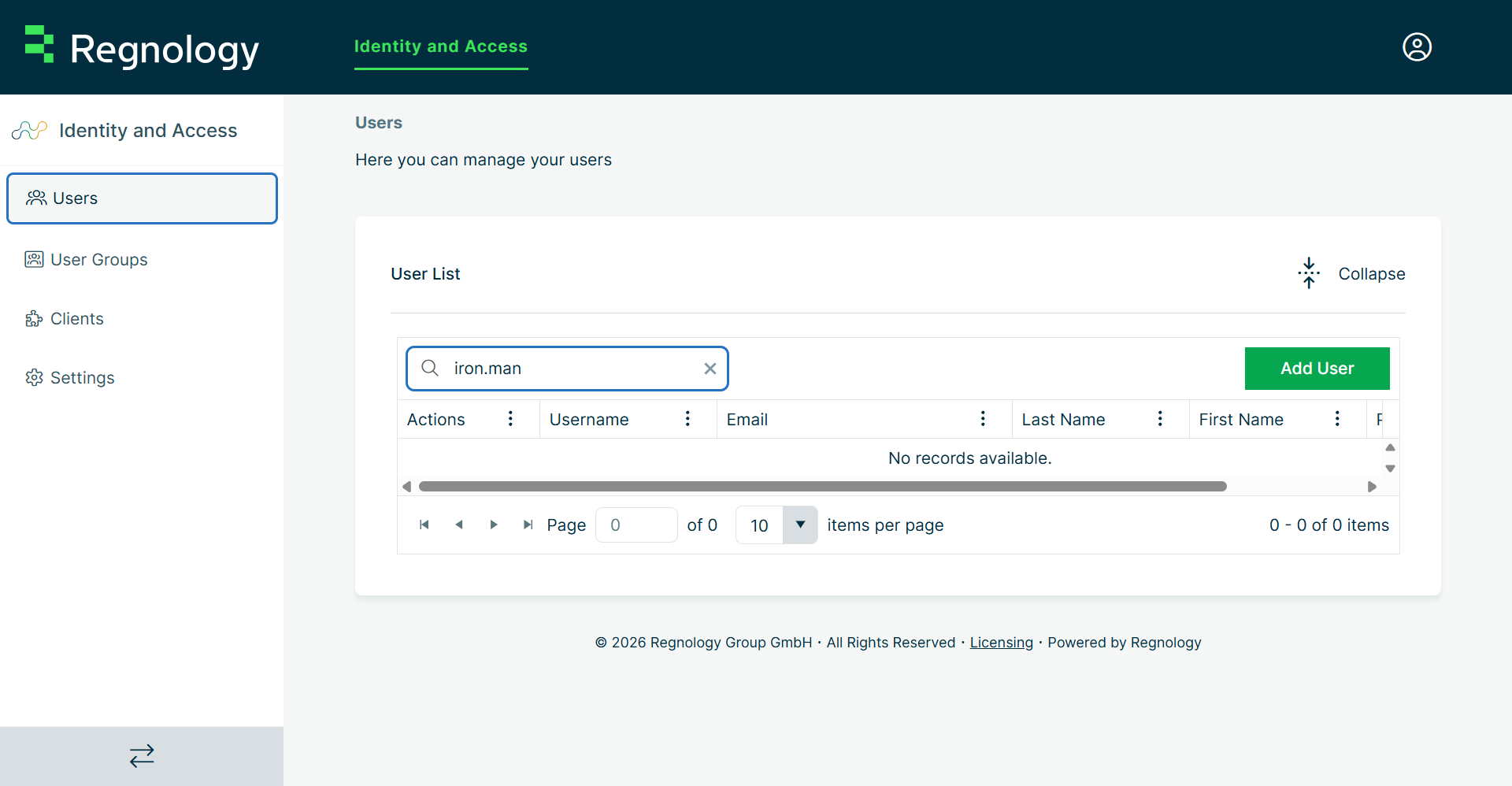
Figure 32. User List after delete
Warning
Deletion is permanent. Always verify the username in the confirmation dialog before clicking Delete.