Update global contexts
This page explains how to update the Global Entities and Global Entity Groups contexts.
Open Settings → Global Contexts
-
In the left navigation pane, click Settings.
-
Scroll to the Global Contexts card (section title on screen: "Global Contexts").
-
You should see global entities and global entity groups with Test and Edit actions.
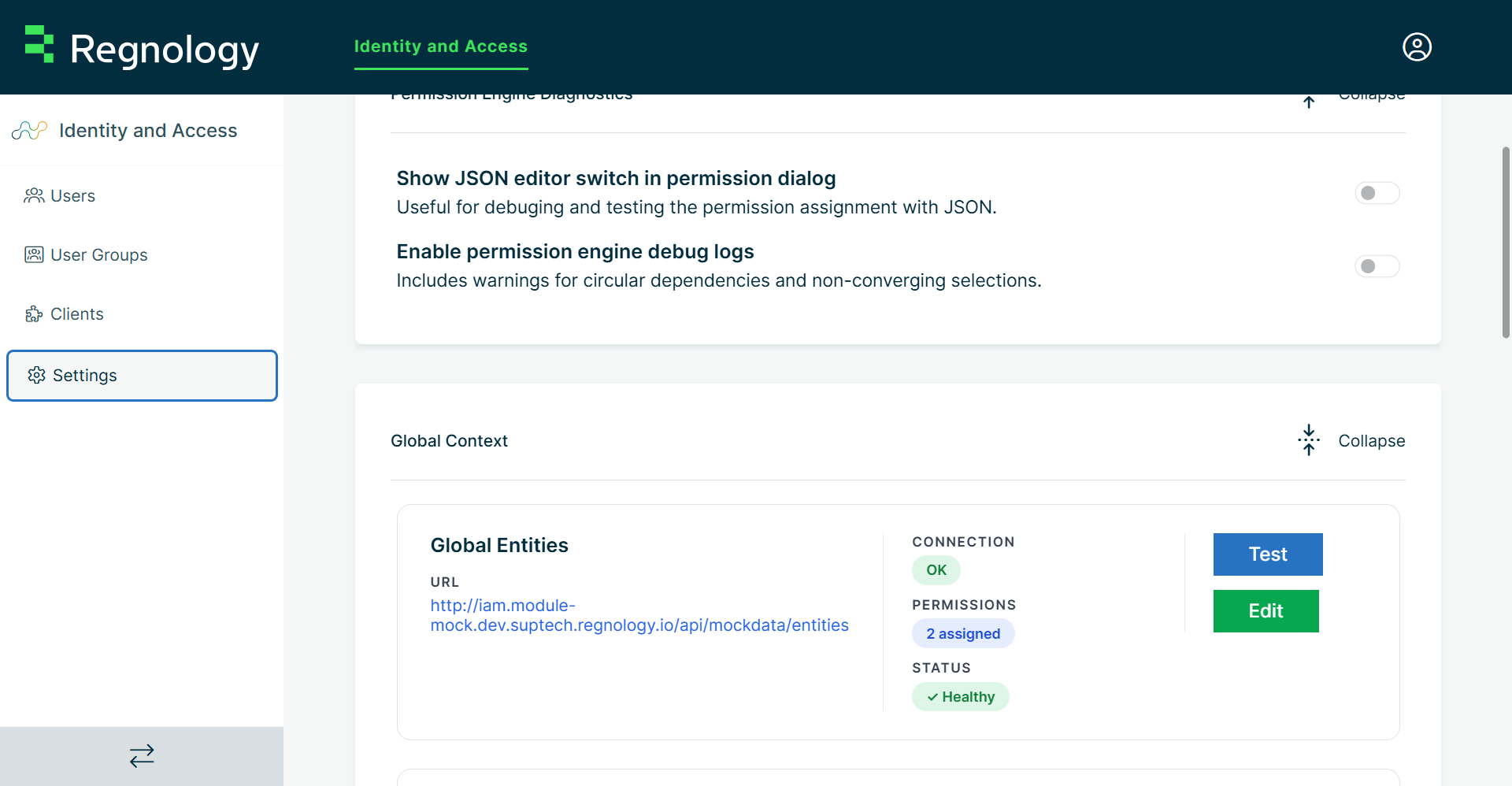
Figure 14. Settings — Global Contexts
Update Global Entities
-
In Global Context, find the Global Entities card and click Edit for that card only.
-
The dialog opens with title Edit Global Entities Context.
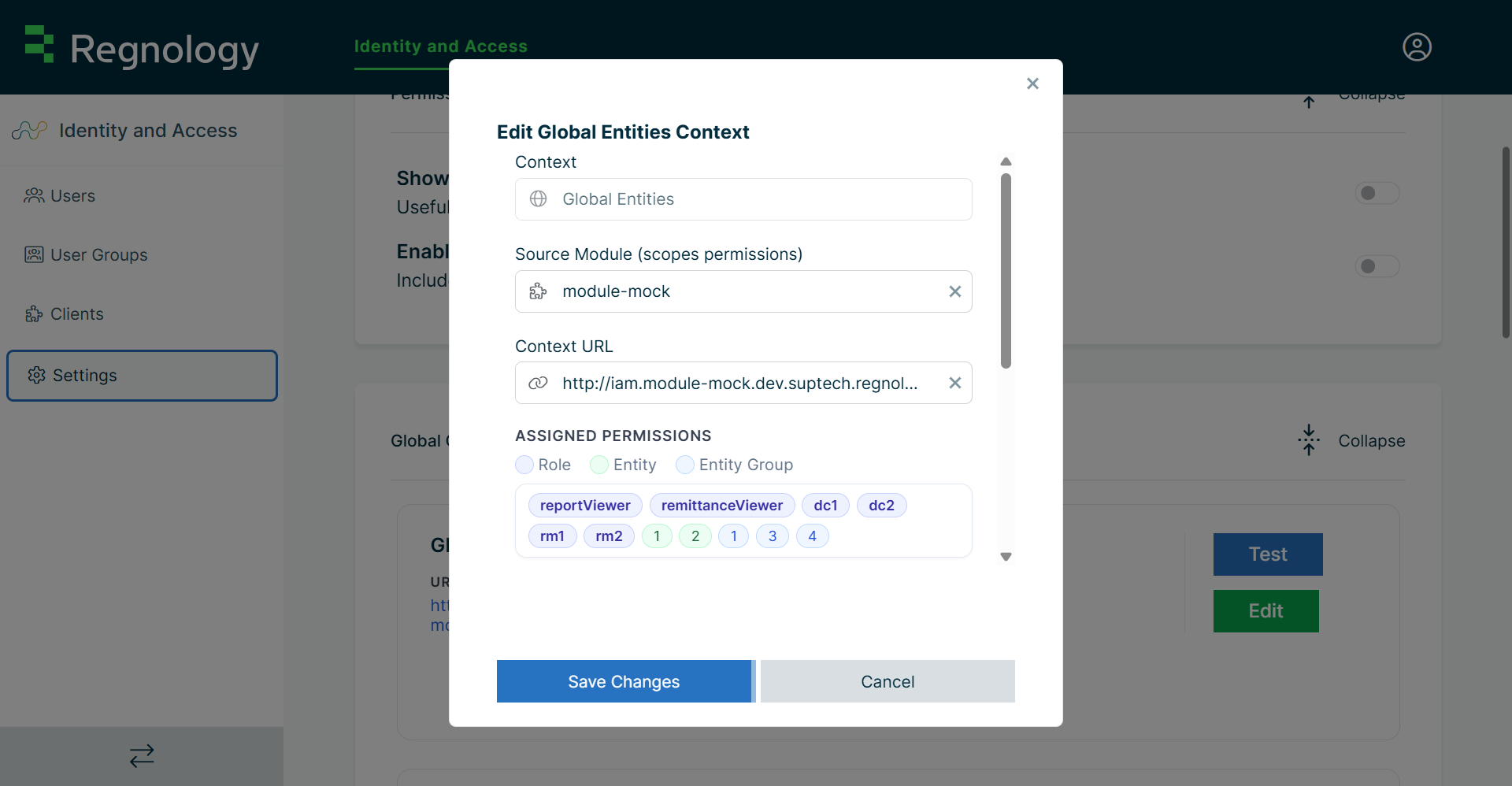
Figure 15. Edit Global Entities Context dialog
-
Clear Context URL and click Save Changes.
-
Failure message: Global context update failed — Url for entities context is invalid: URL is required.
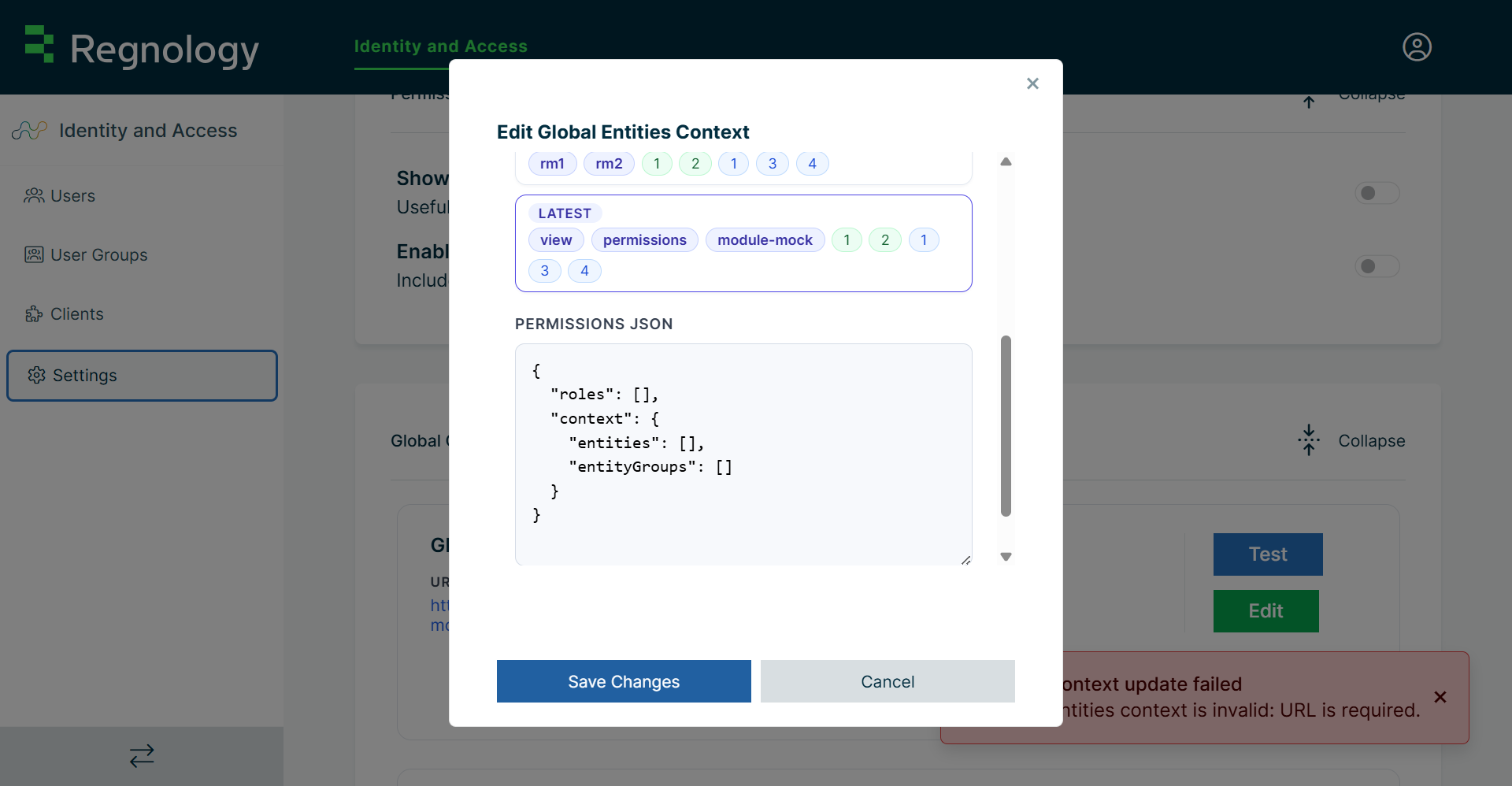
Figure 16. Global Entities — blank Context URL failure
-
Enter an invalid Context URL (example: not-a-valid-url), then click Save Changes.
-
Validation failure message appears at the bottom of the dialog box.
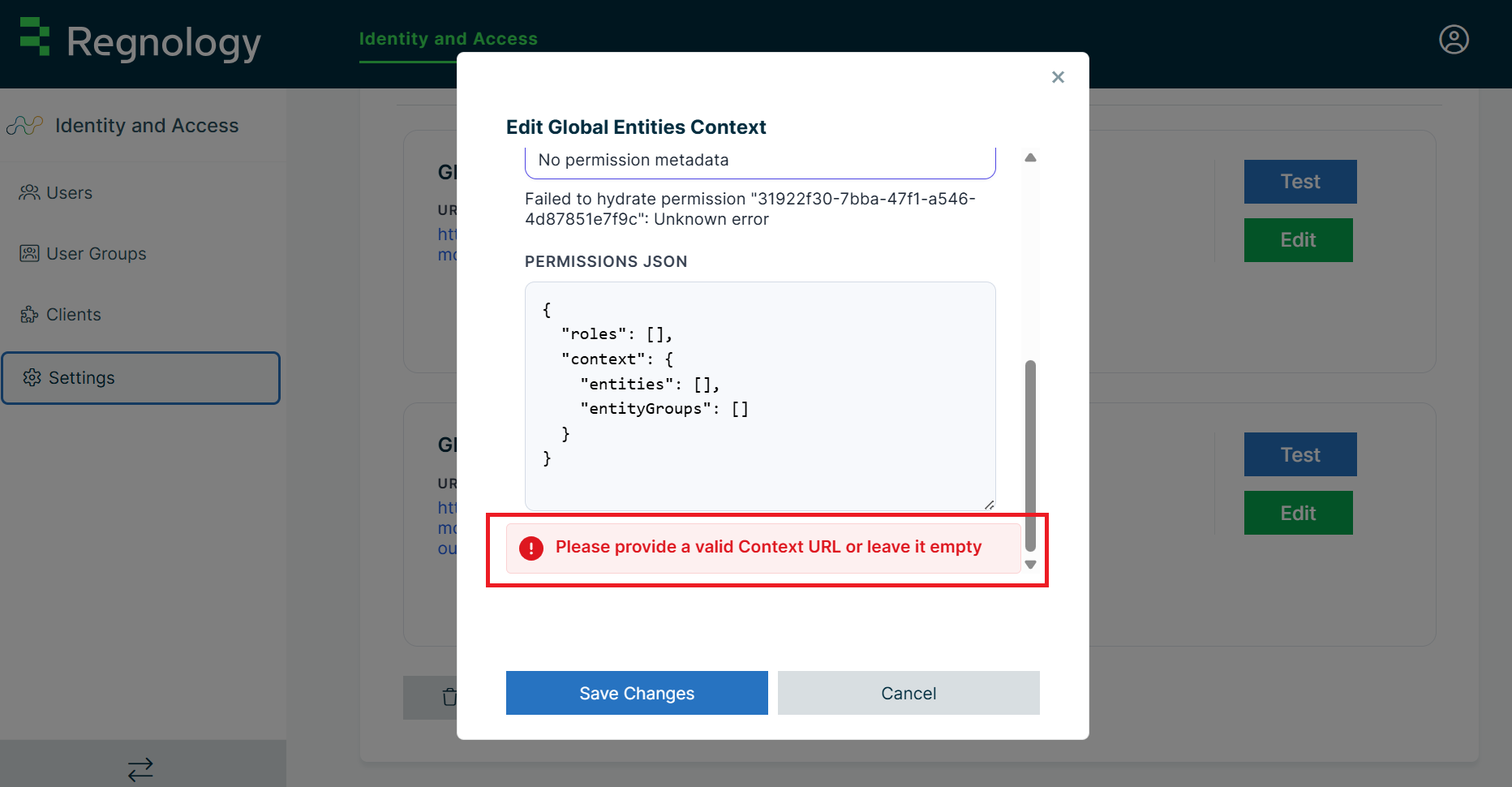
Figure 17. Global Entities — invalid Context URL validation
-
Enter a valid Context URL.
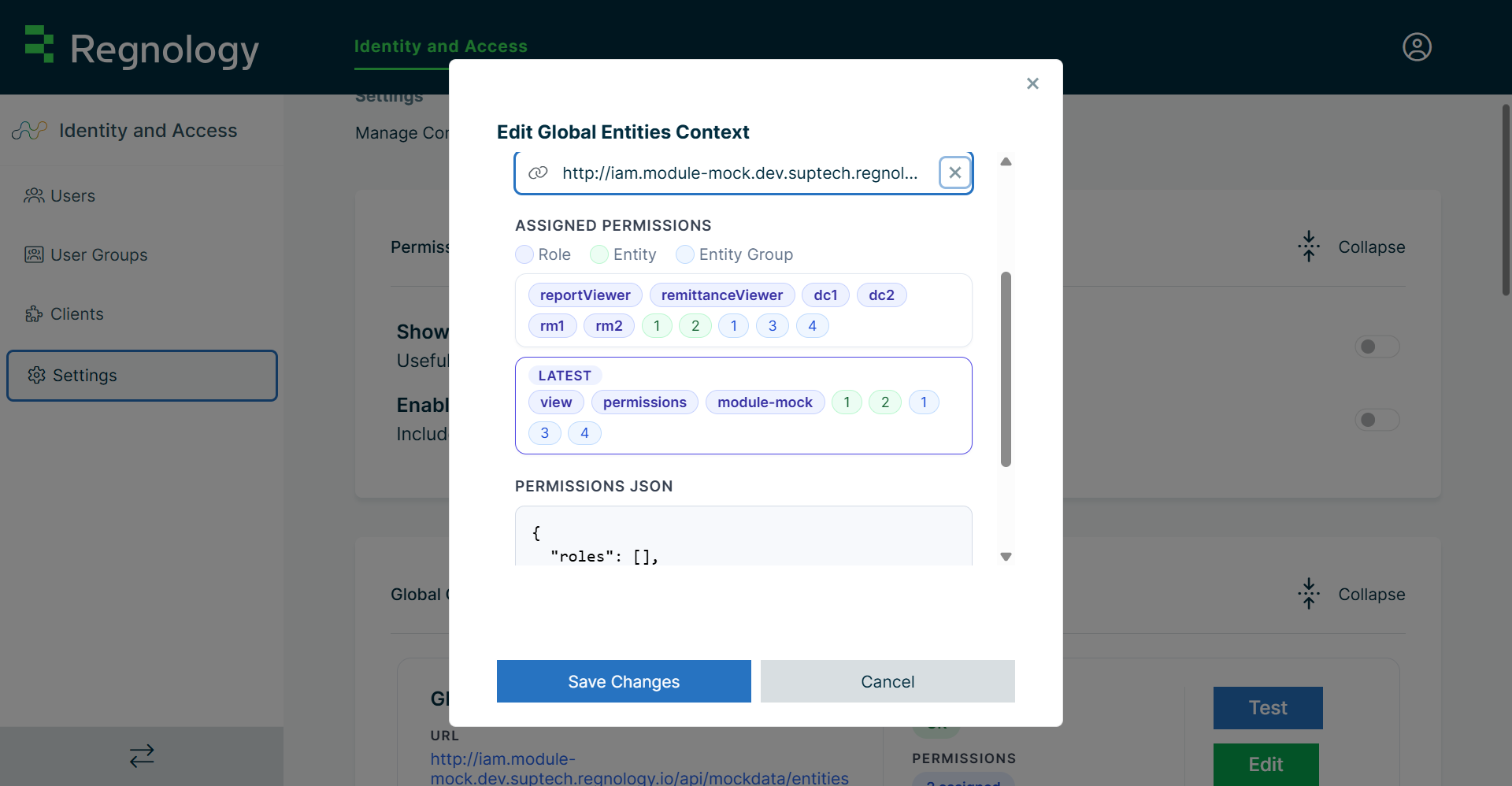
Figure 18. Global Entities Context URL completed
-
Click Save Changes.
-
Success message: Global context updated
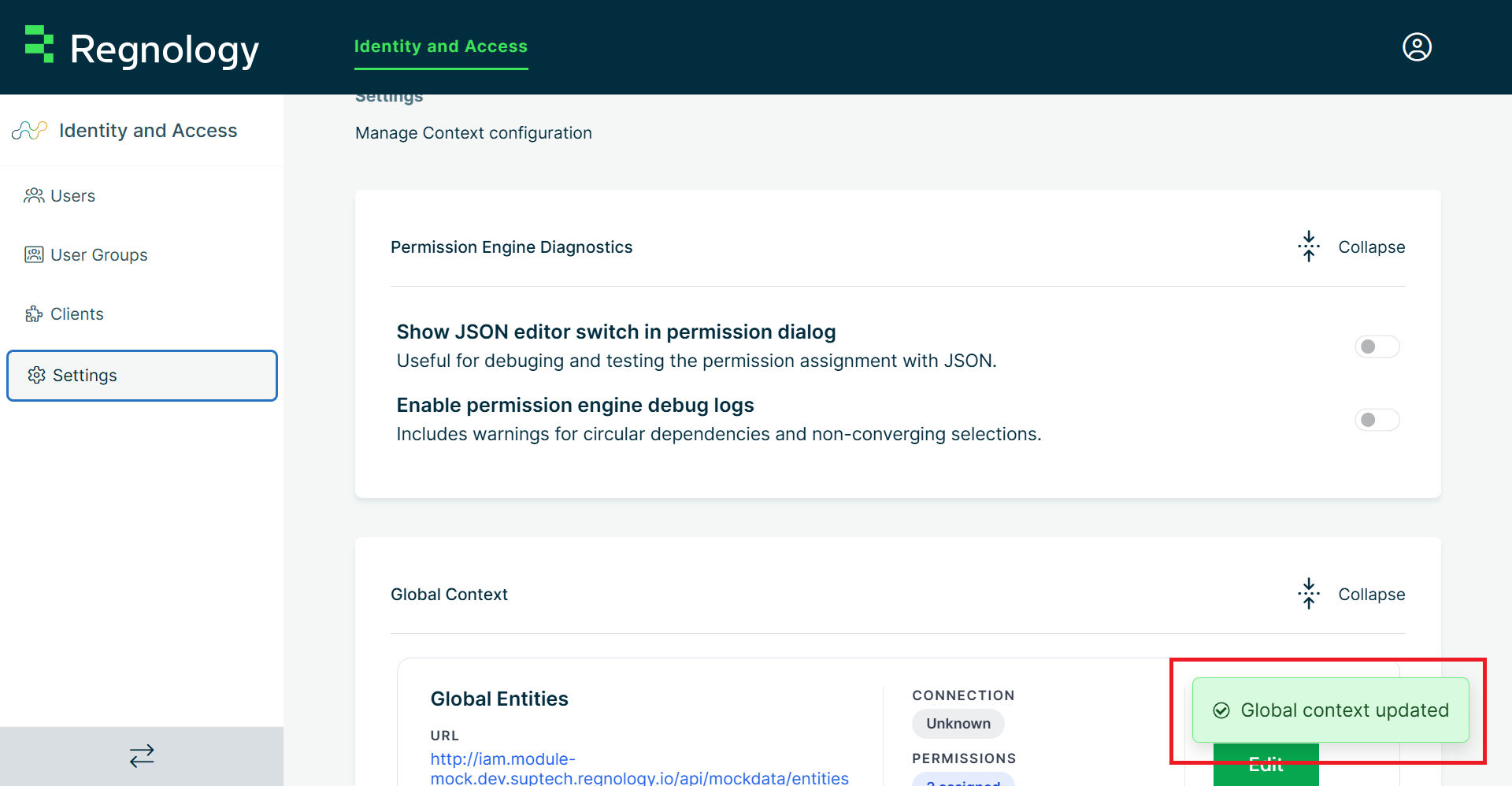
Figure 19. Success message after updating Global Entities
-
Confirm the Global Entities card shows the updated Context URL.
Update Global Entity Groups
-
In Global Context, find the Global Entity Groups card and click Edit for that card only.
-
The dialog opens with title Edit Global Entity Groups Context. Update Context URL the same way as for Global Entities.
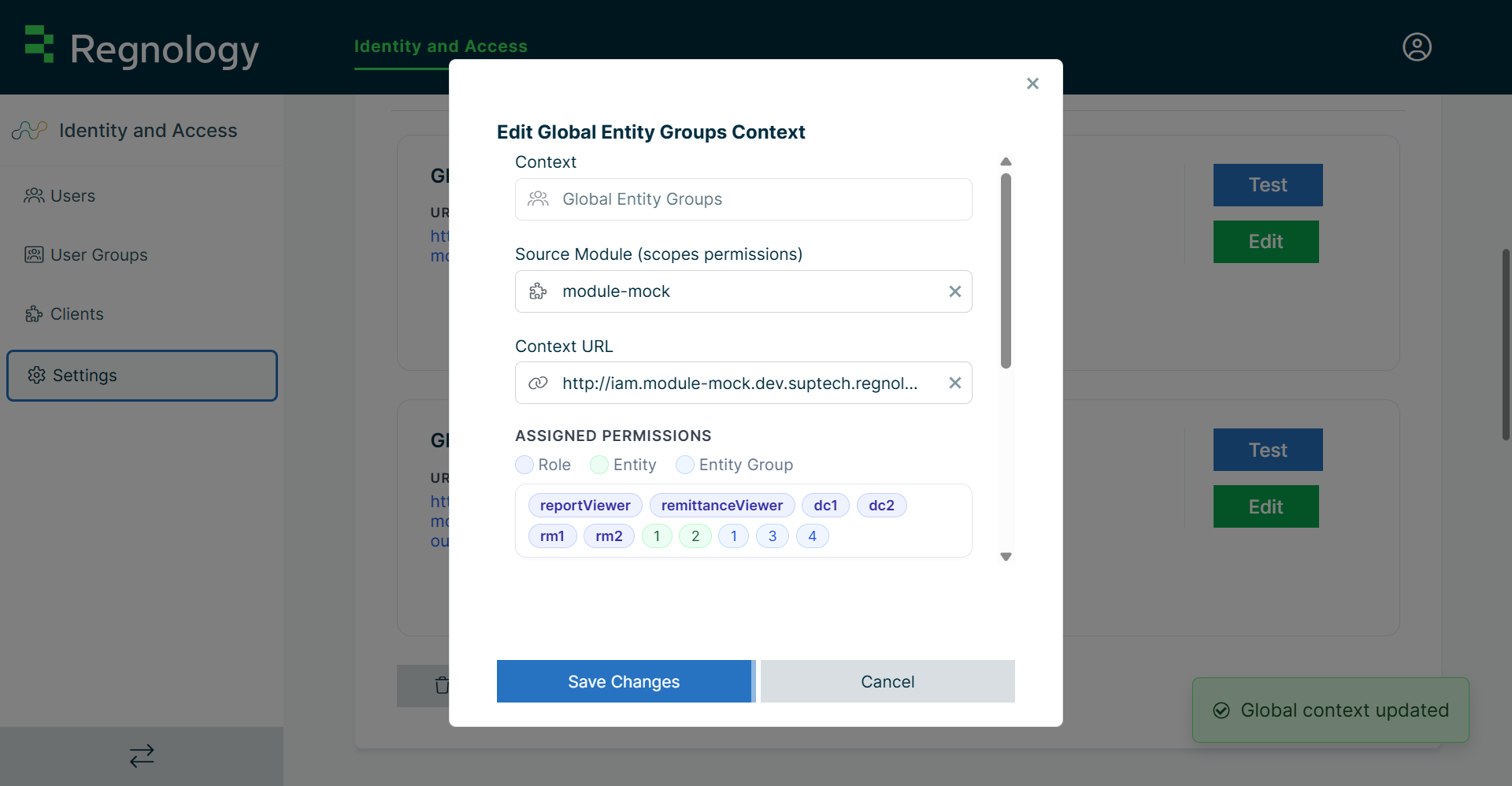
Figure 20. Edit Global Entity Groups Context dialog
-
Clear Context URL and click Save Changes.
-
Failure message: Global context update failed — Url for entity groups context is invalid: URL is required.
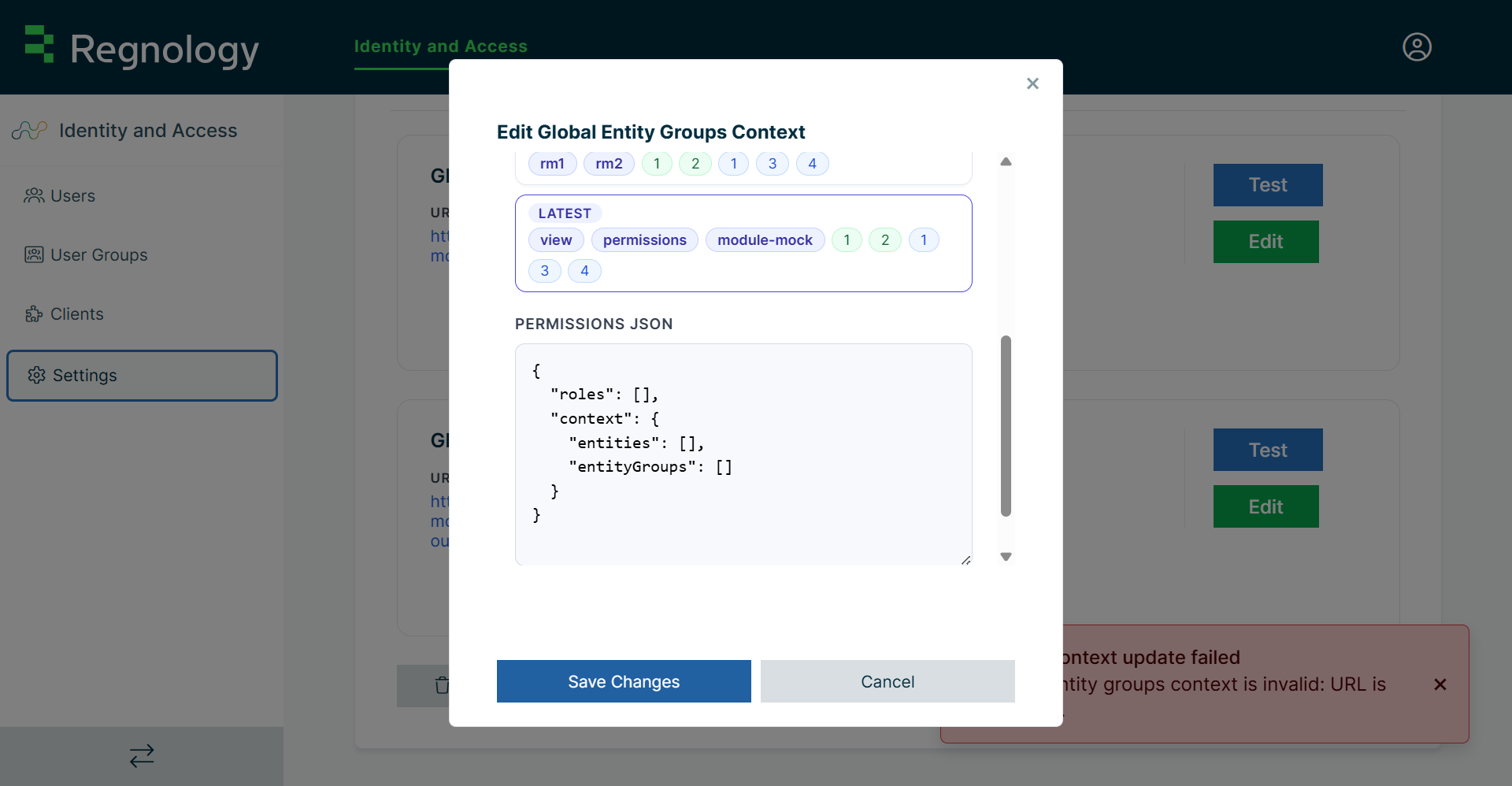
Figure 21. Global Entity Groups — blank Context URL failure
-
Enter an invalid Context URL (example: not-a-valid-url), then click Save Changes.
-
Validation failure message appears at the bottom of the dialog box.
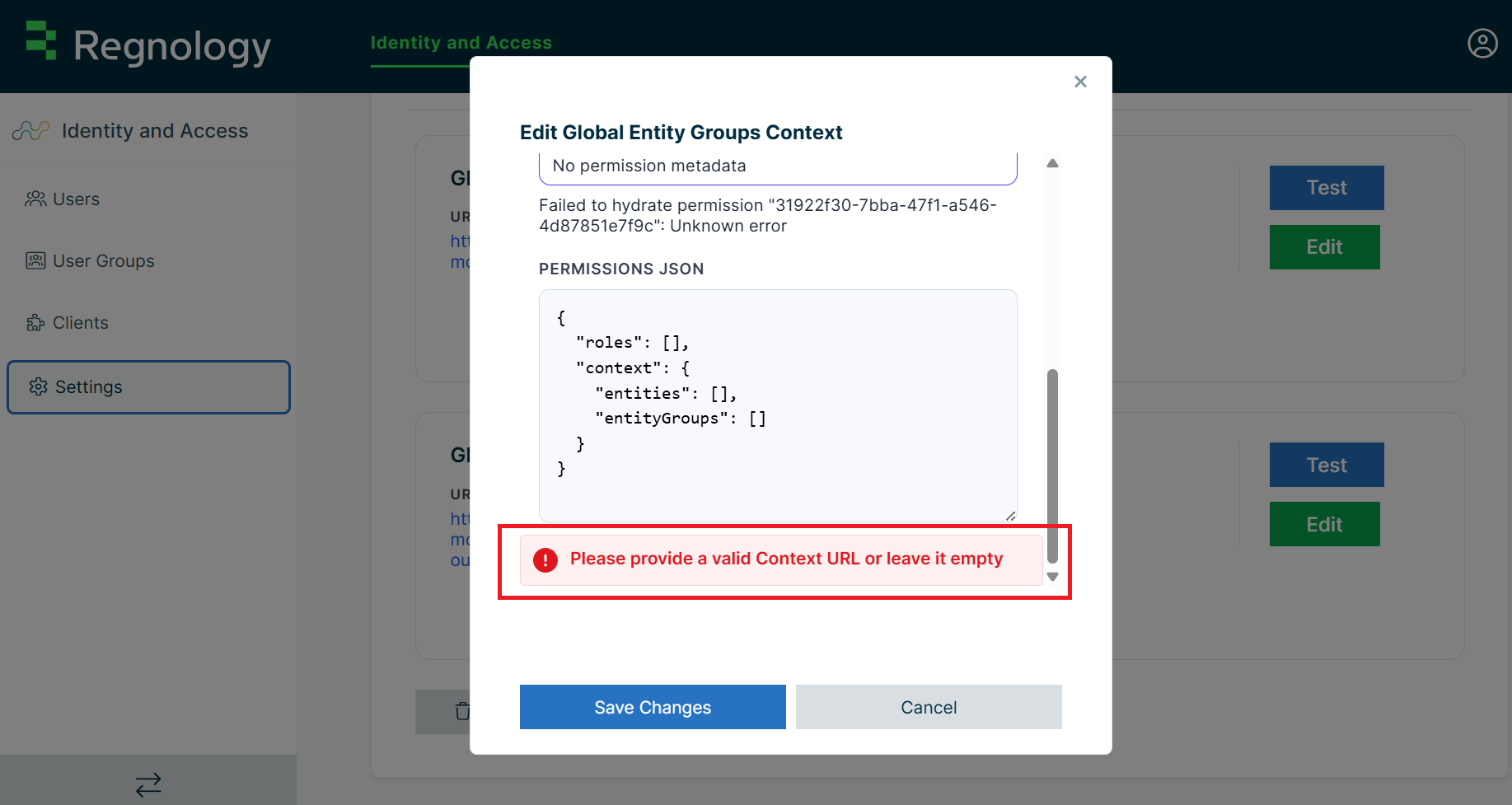
Figure 22. Global Entity Groups — invalid Context URL validation
-
Enter a valid Context URL (example: http://iam.module-mock.dev.suptech.regnology.io/api/mockdata/entityGroups).
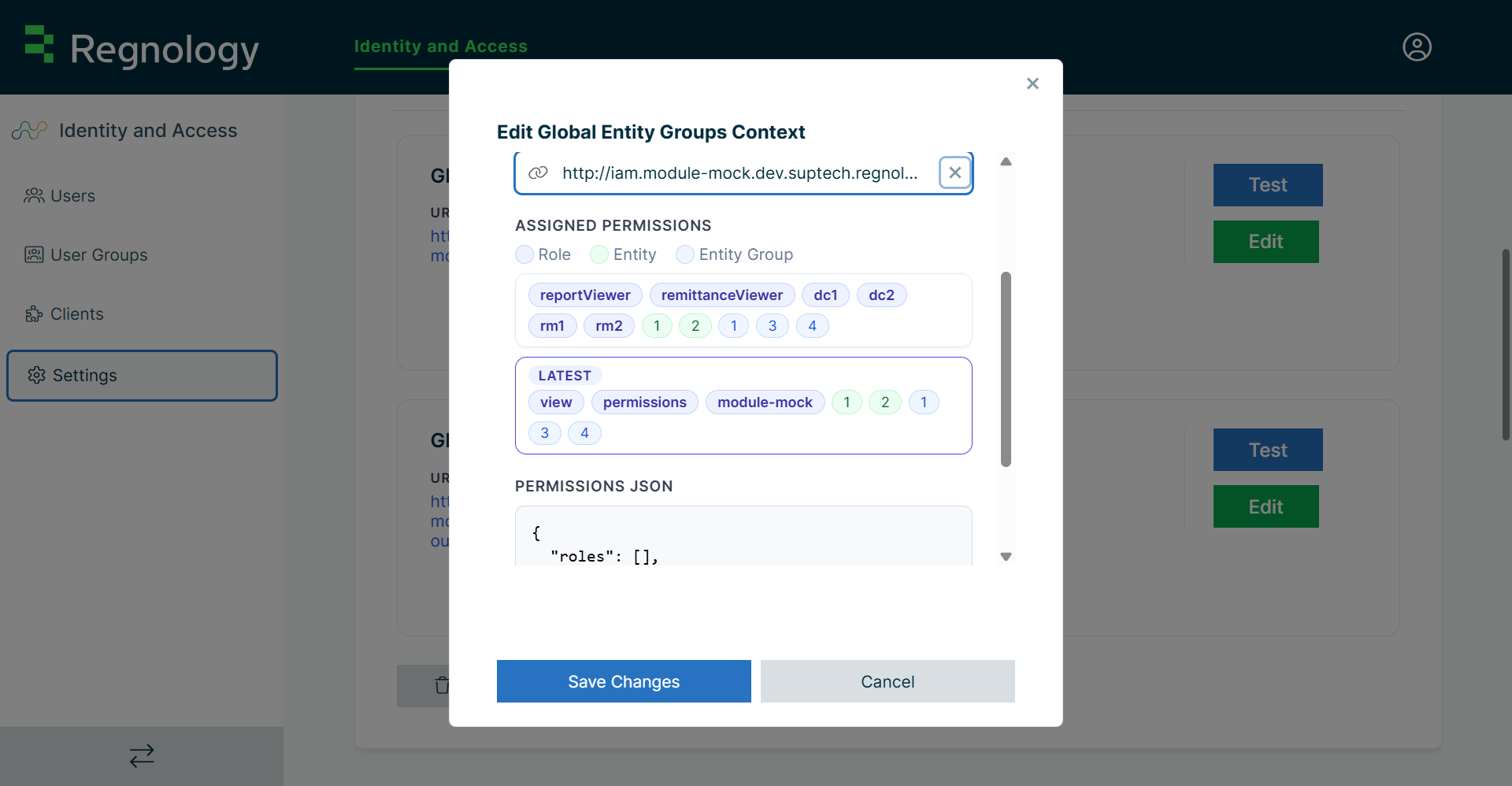
Figure 23. Global Entity Groups Context URL completed
-
Click Save Changes.
-
Success message: Global context updated
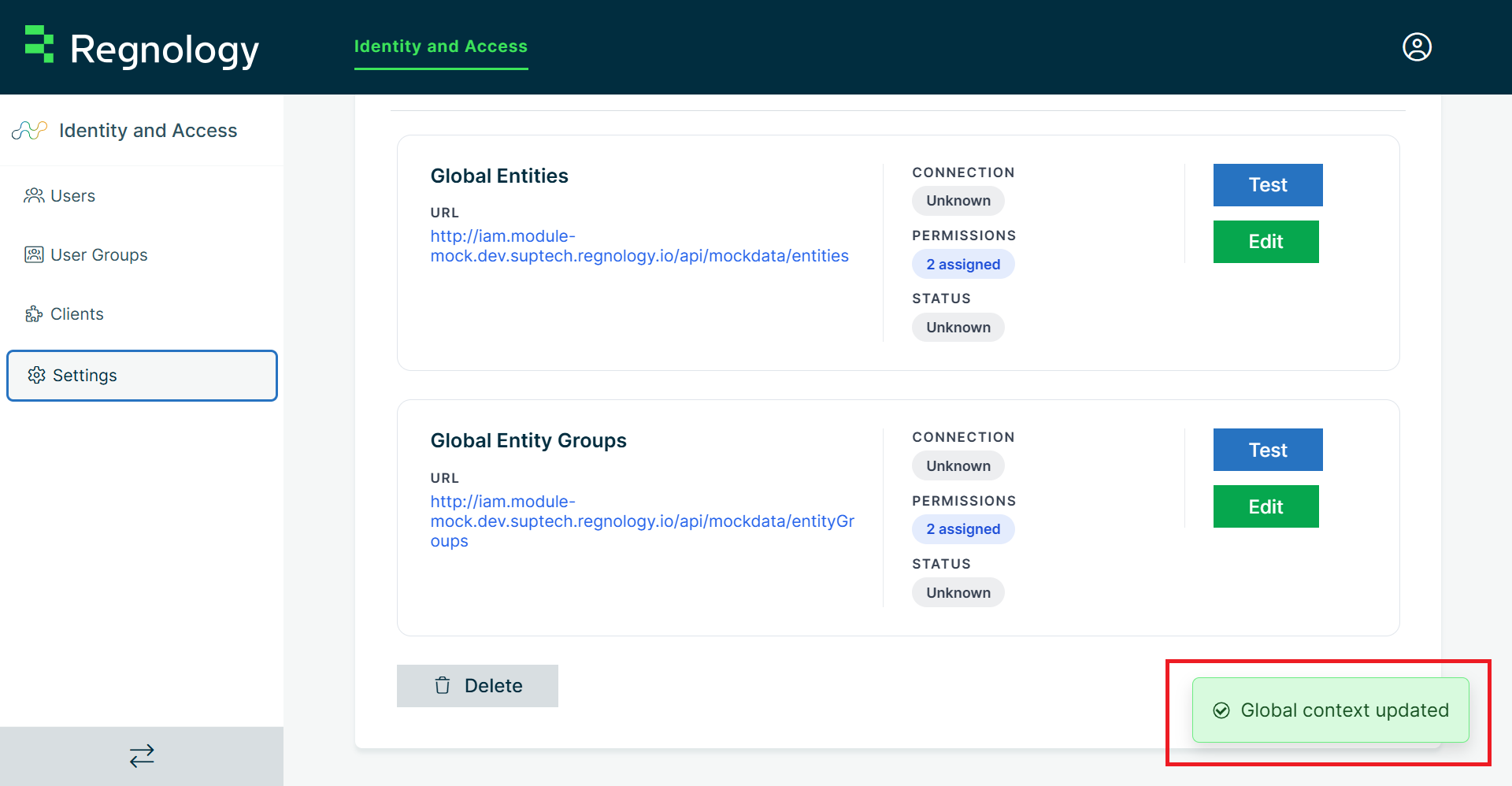
Figure 24. Success message after updating Global Entity Groups