Create client
This page explains how to create regular clients and module clients (using a Module ID).
Note
For more technical details refer Module Integration with IAM.
Open the Clients page
-
In the left navigation pane, click Clients to open the Client List.
-
You should see the Client List with the Add Client and Add Module Client buttons.
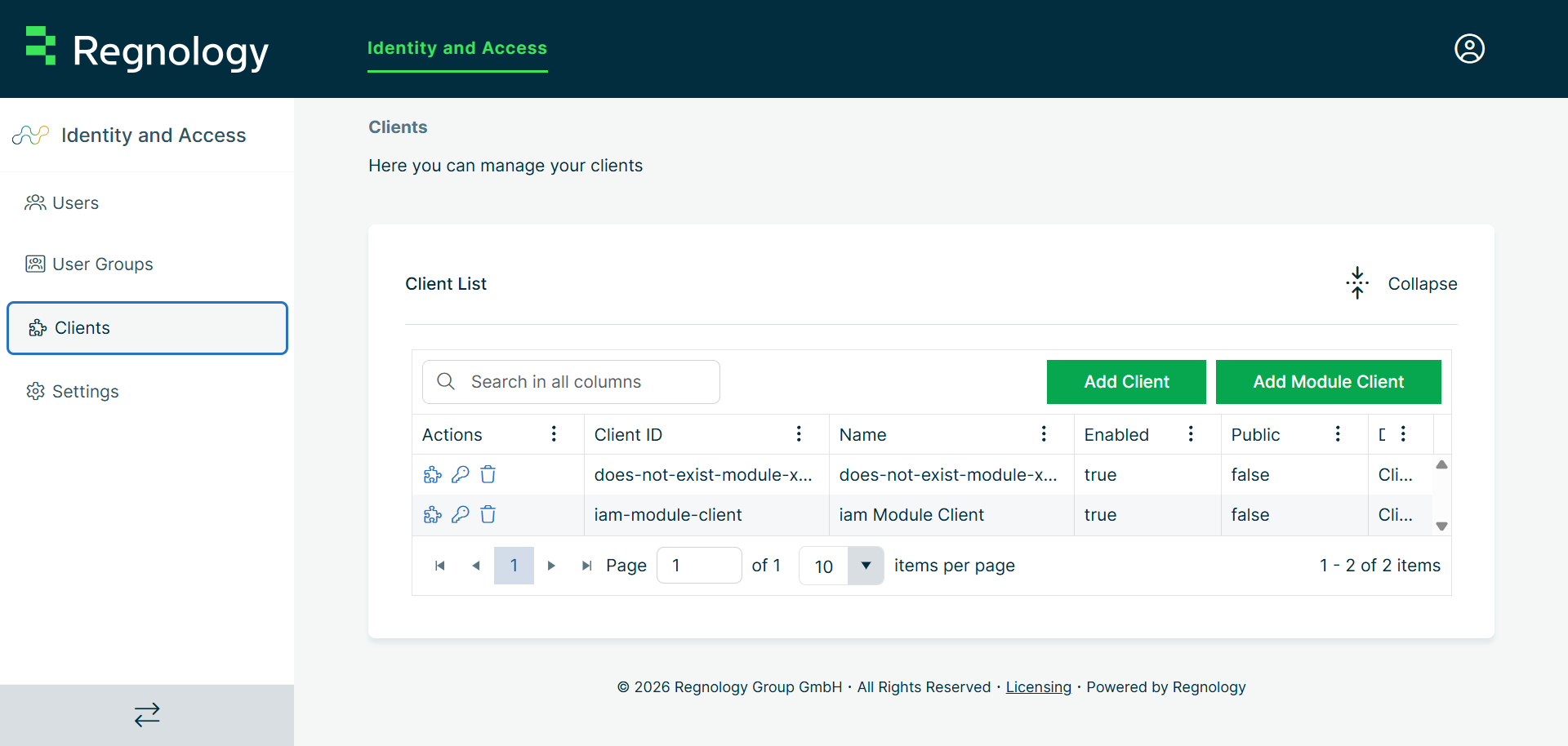
Figure 1. Clients page — Client List
Create a regular client — Add Client
-
Click Add Client.
-
The Create Client form opens.
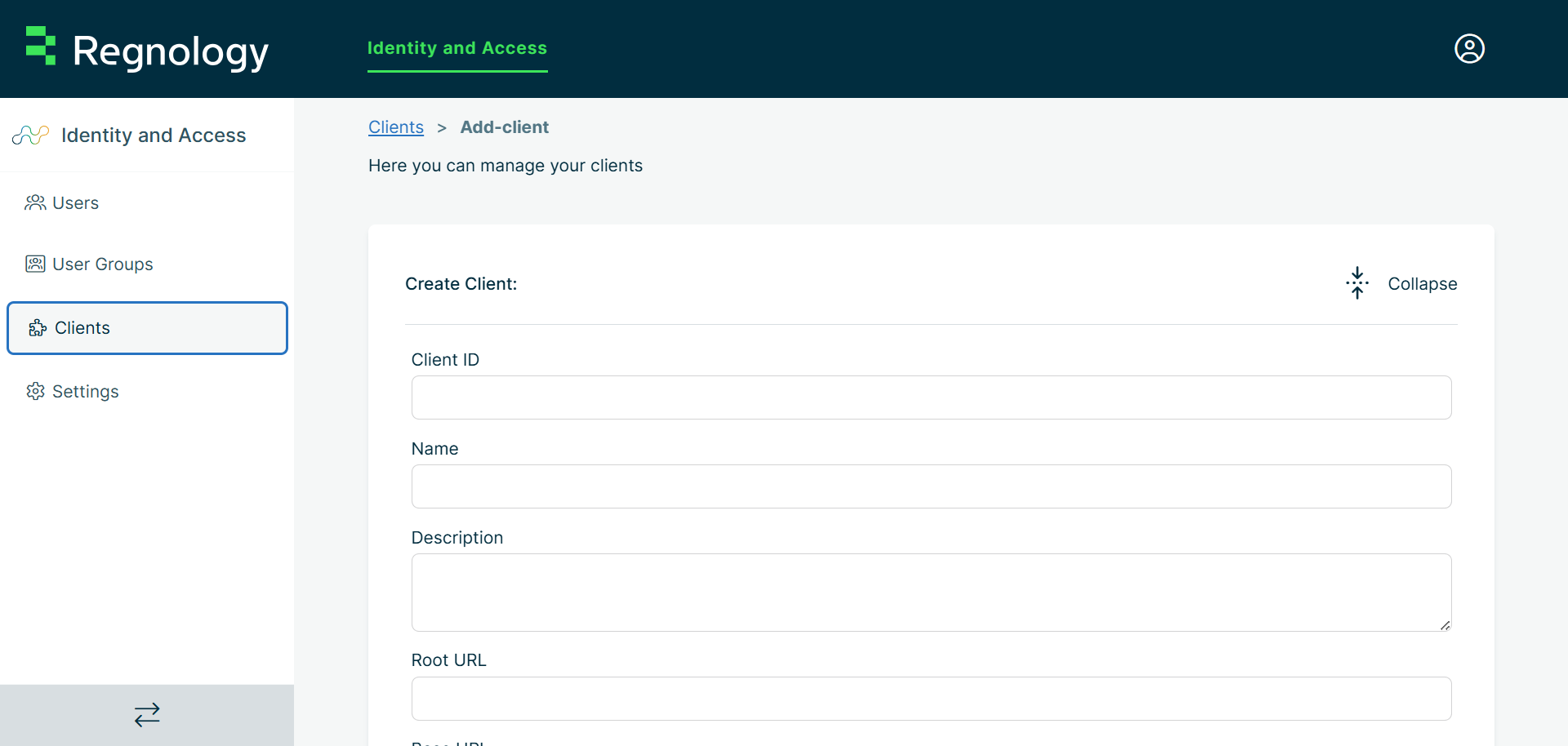
Figure 2. Create Client form (empty)
-
Enter a Client ID (example: "iron.man.demo.client") and a Name (example: "Iron Man Demo Client"). Optionally complete Description and the other fields, then click Save.
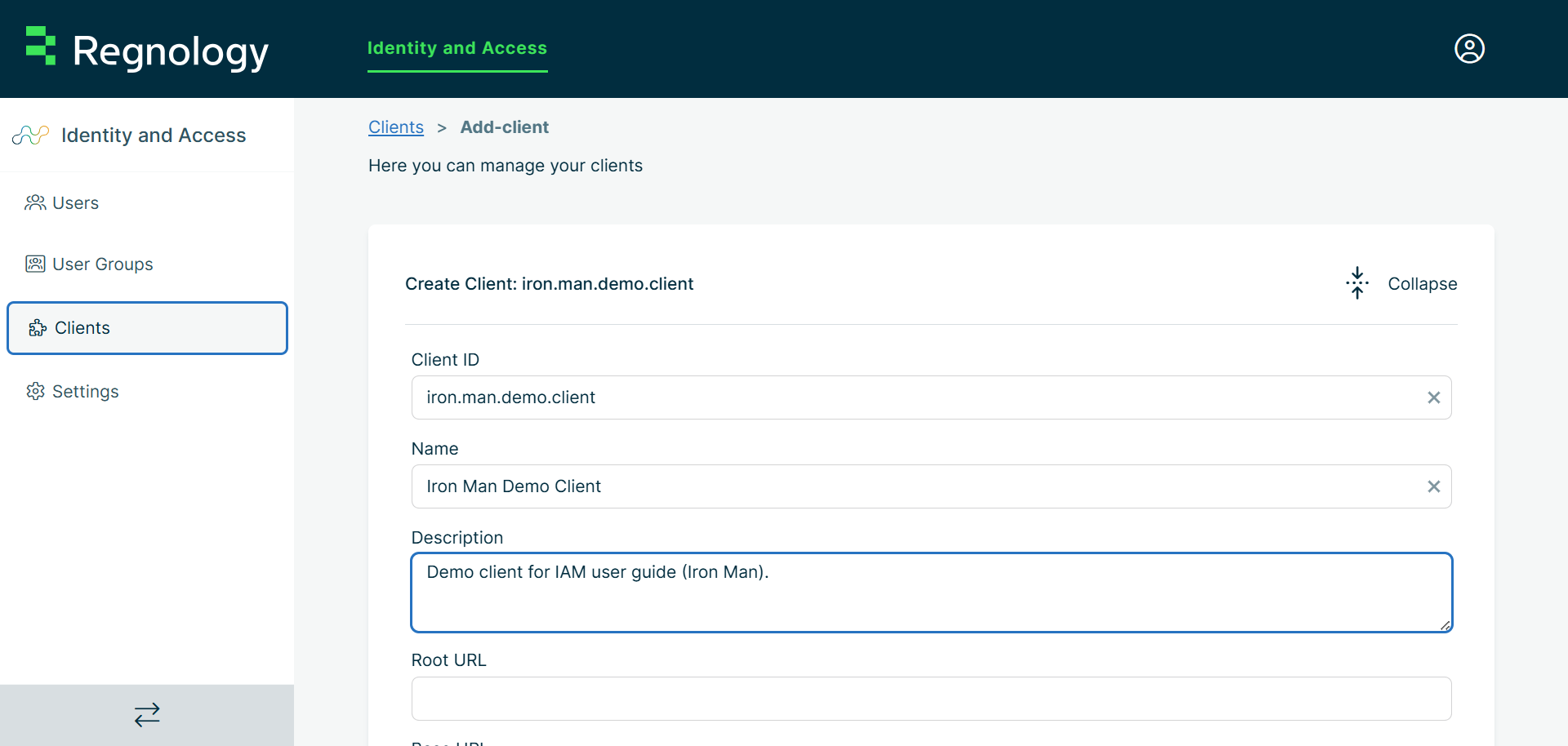
Figure 3. Create Client form completed (iron.man.demo.client / Iron Man Demo Client)
-
Success message: "Client "iron.man.demo.client" was added"
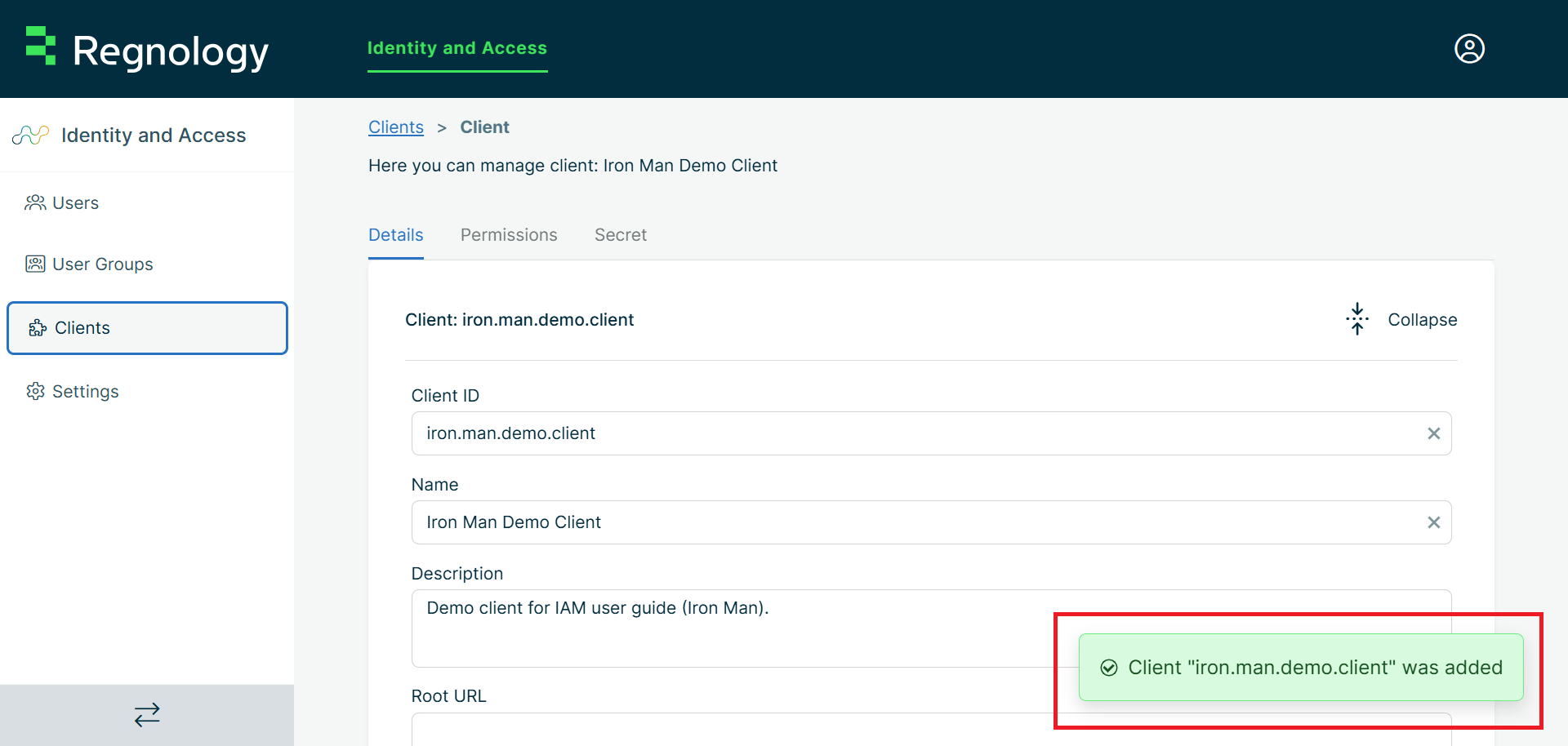
Figure 4. Success message after creating a regular client
-
Confirm the new client appears in the Client List (Client ID "iron.man.demo.client").
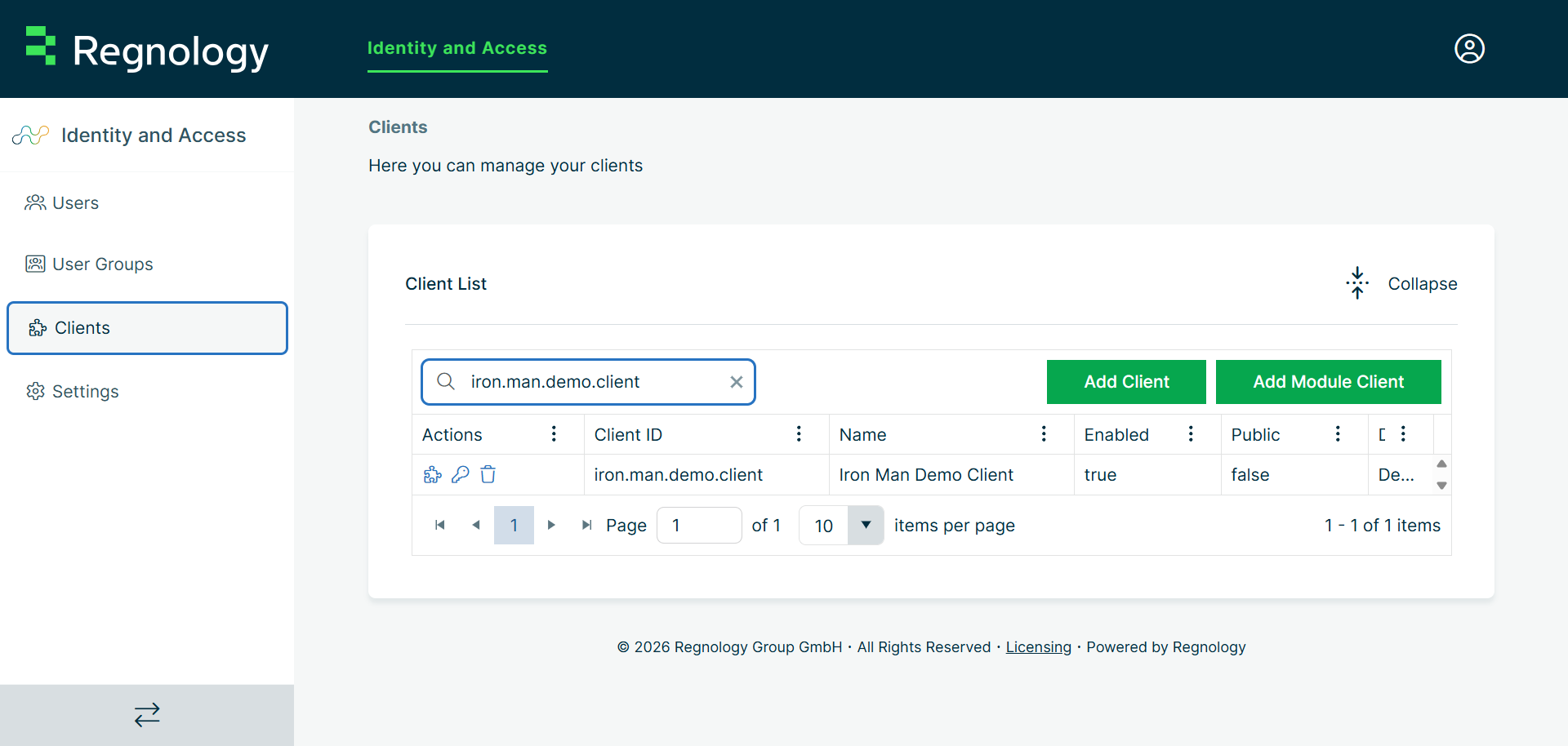
Figure 5. Client List after creating iron.man.demo.client
Create a module client — Add Module Client
Use Add Module Client when you want to add a module client using a Module ID. The UI creates a client whose ID follows the module naming pattern (for Module ID "demo-iron-man", the client becomes "demo-iron-man-module-client").
-
On the Clients page, click Add Module Client.
-
The Create Module Client form opens with the Module ID field and a Create Module Client button.
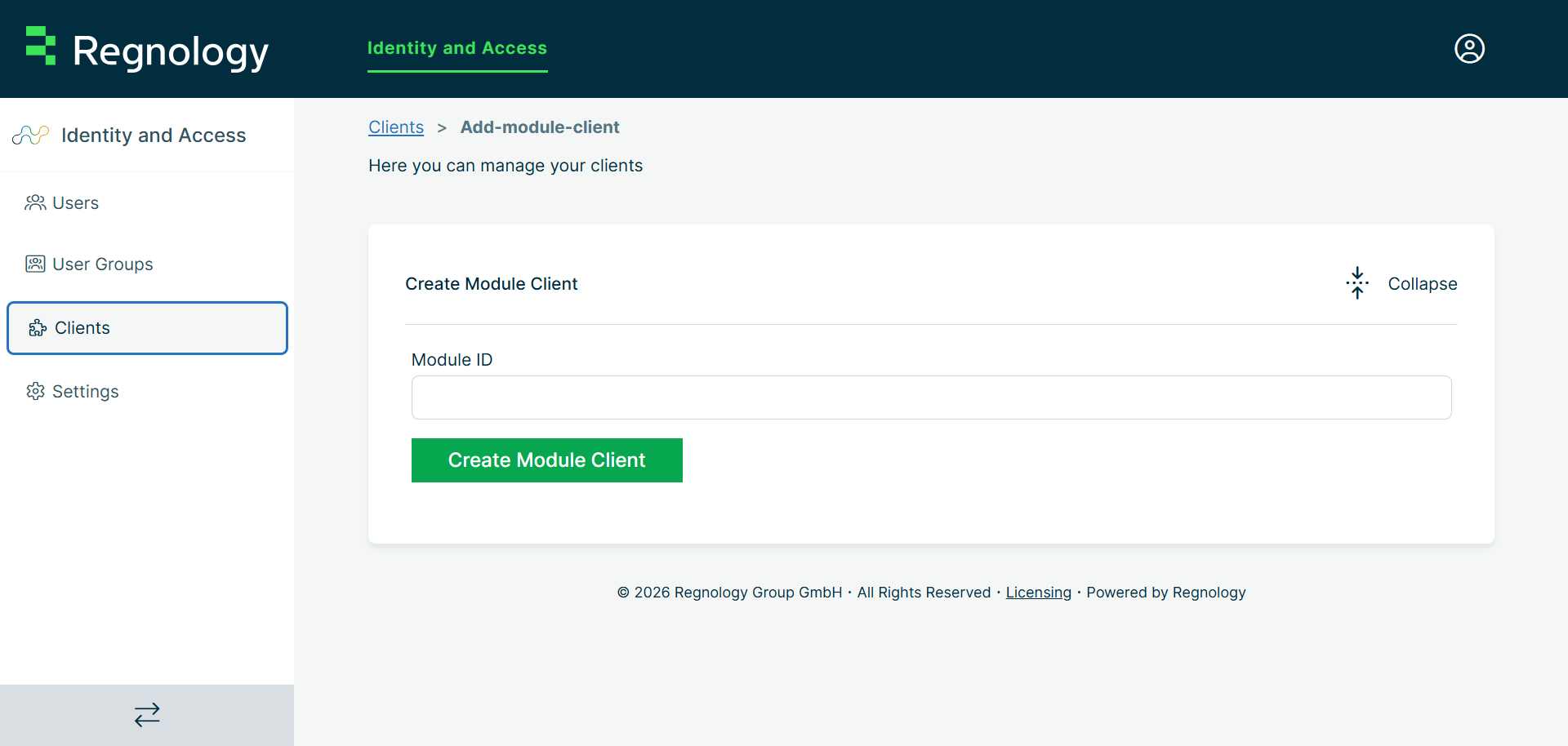
Figure 6. Create Module Client form (empty)
-
In Module ID, enter a module identifier (example: "demo-iron-man"), then click Create Module Client.
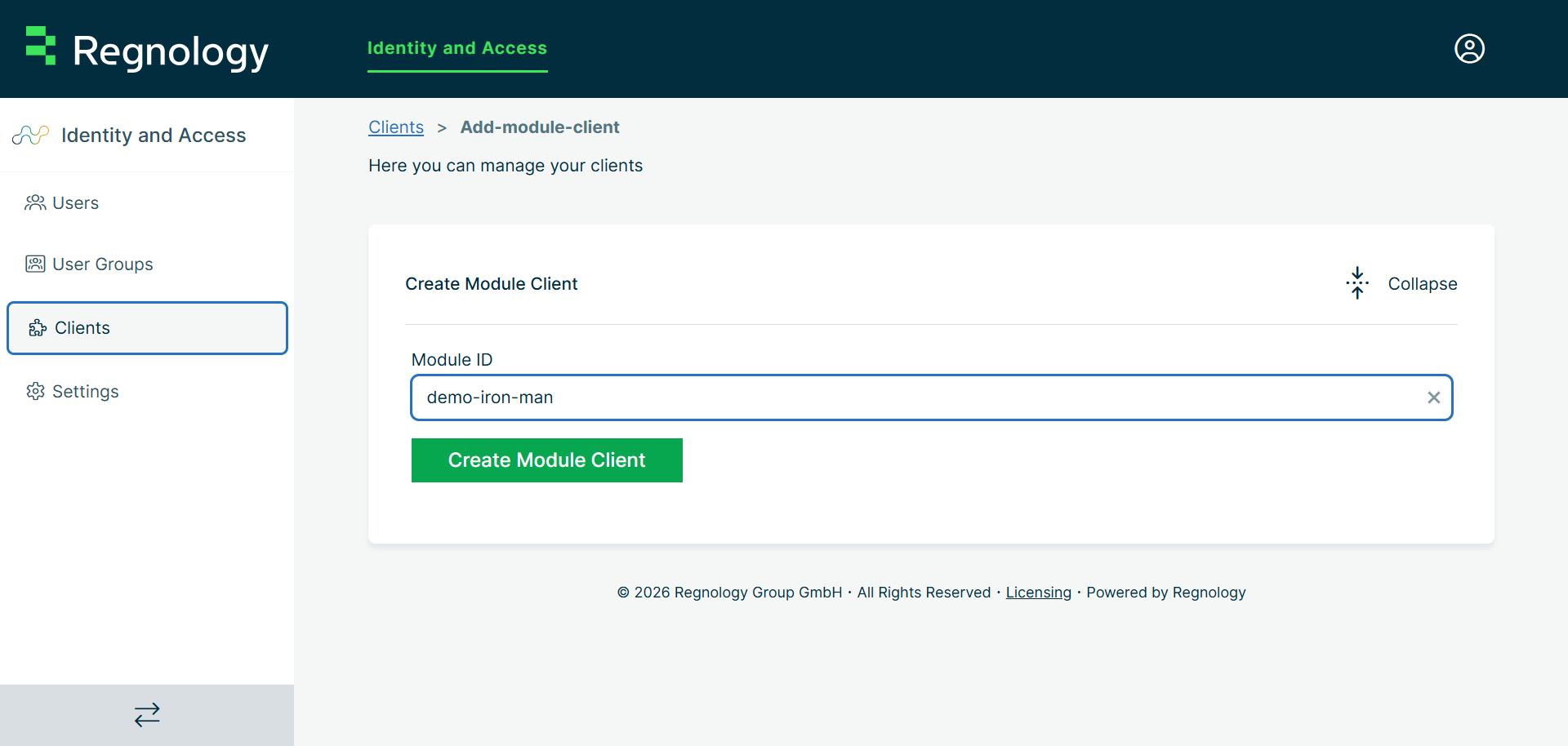
Figure 7. Create Module Client with Module ID demo-iron-man
-
Success message: "Module client "demo-iron-man-module-client" was added"
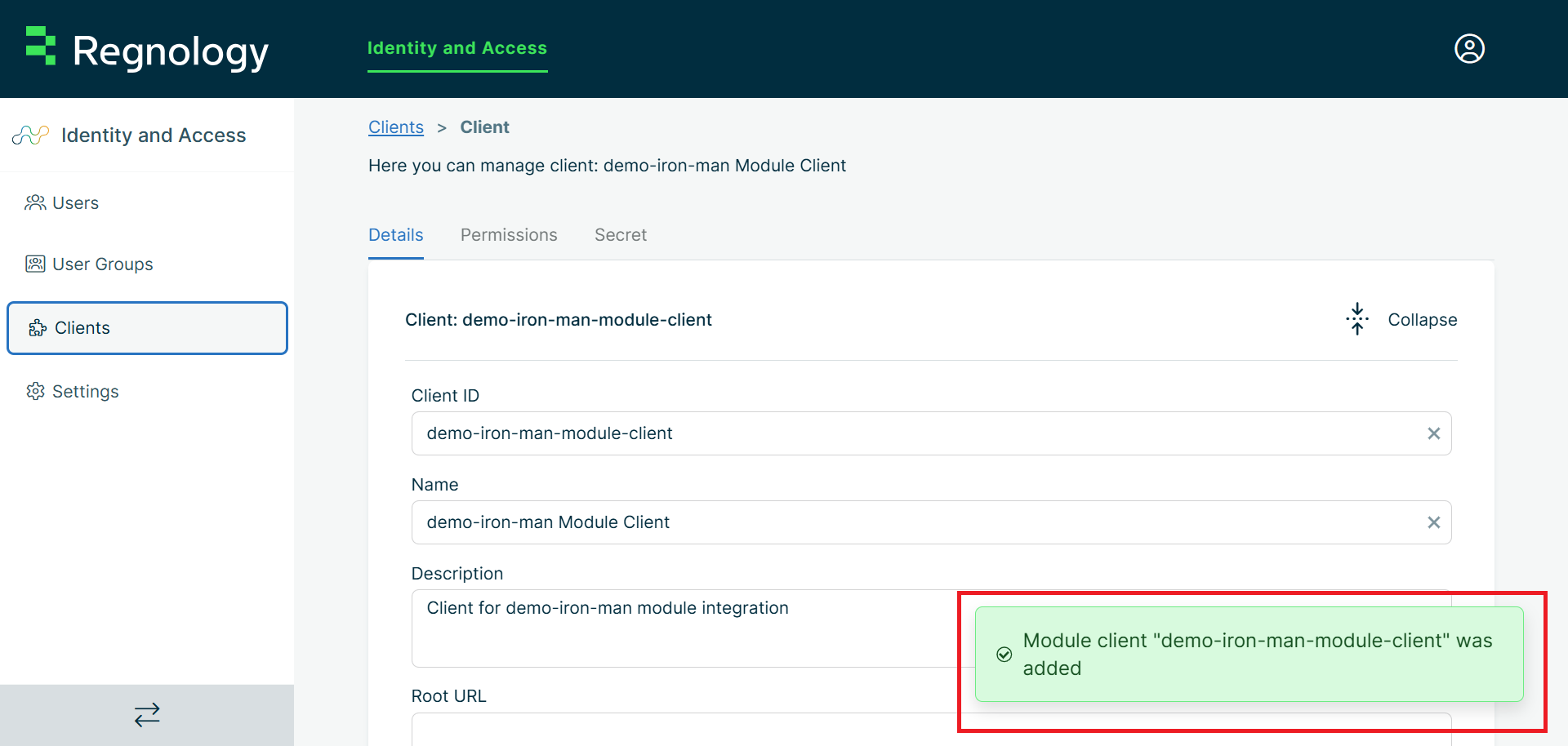
Figure 8. Success message after creating a module client
-
Confirm "demo-iron-man-module-client" appears in the Client List.
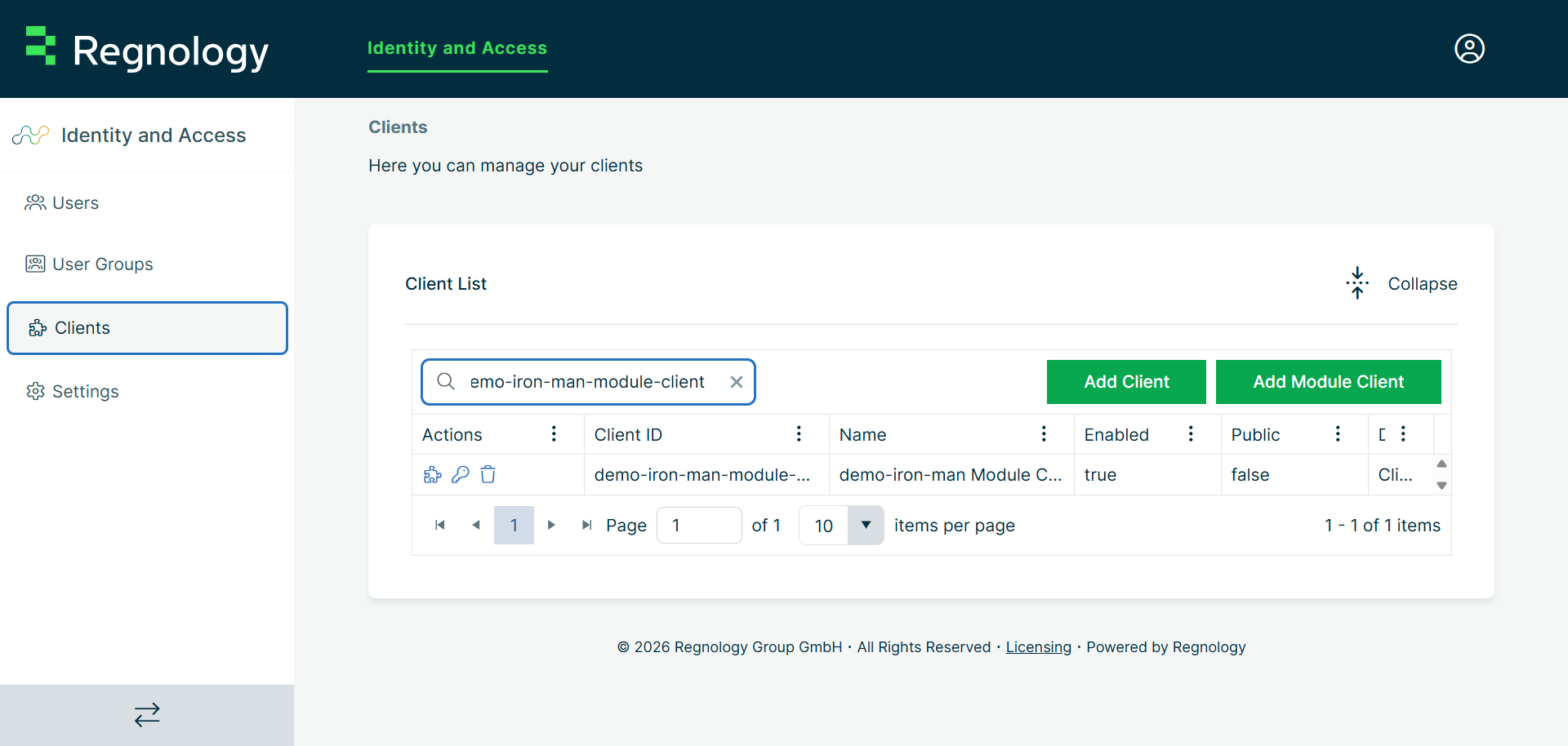
Figure 9. Client List after creating demo-iron-man-module-client